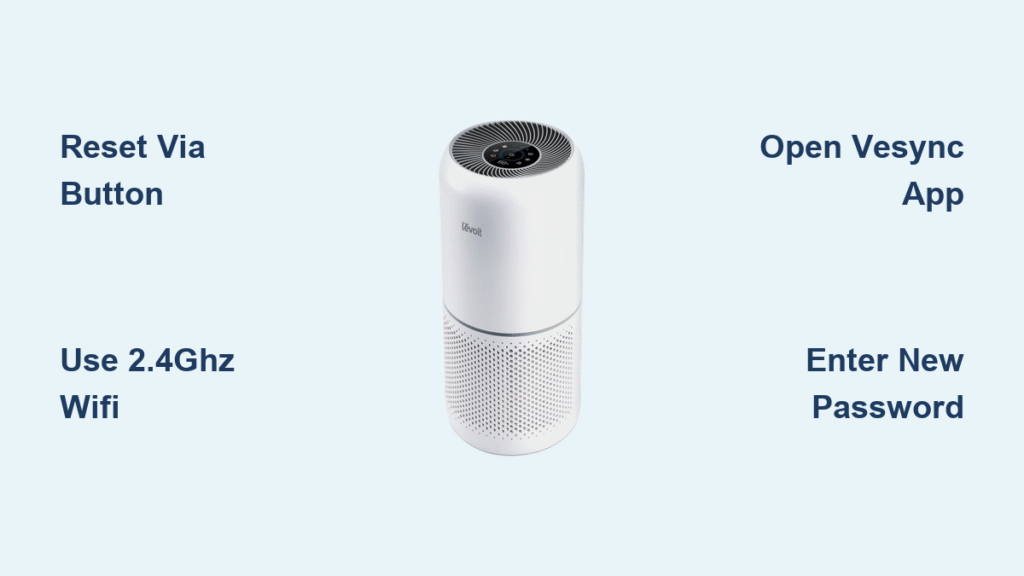
Your Levoit air purifier suddenly stops responding through the VeSync app after changing your internet router or updating your network password. This common frustration leaves you unable to schedule cleanings, monitor air quality remotely, or adjust fan speeds from another room. The problem isn’t broken hardware—it’s a simple WiFi disconnect that requires resetting your purifier’s network settings. The good news? With the right steps, you can reconnect your Levoit air purifier to your new WiFi network in under 10 minutes without calling customer support.
Why Your Levoit Air Purifier Loses WiFi Connection
Router replacements, password updates, or moving to a new home instantly sever the communication between your Levoit purifier and the VeSync app. Your device continues running on manual settings but loses all smart functionality until properly reconnected. Many users mistakenly think their expensive air purifier has malfunctioned when it’s merely disconnected from your updated network. Understanding these common triggers prevents unnecessary stress when your smart features suddenly disappear.
Specific Situations Requiring WiFi Reset
- Installing a new router after your ISP upgraded your equipment
- Changing your WiFi password for security reasons
- Moving your purifier to a different room with weaker signal
- Accidentally connecting to 5GHz instead of required 2.4GHz network
- Setting up temporary guest network for visitors
Essential Preparations Before Changing WiFi
Gather your new network credentials and verify your smartphone connects to the 2.4GHz band—Levoit air purifiers exclusively use this frequency even when your router broadcasts dual bands. Many connection failures happen because users don’t realize their phone automatically jumps to 5GHz during setup. Disable 5GHz broadcasting temporarily in your router settings if you encounter persistent pairing issues.
Critical Setup Checklist
- New WiFi network name (SSID) written down to avoid typing errors
- Updated password ready with correct capitalization and symbols
- Smartphone with latest VeSync app version installed
- Paperclip or SIM eject tool for physical reset buttons
- Stable internet connection on your phone (disable cellular data)
How to Reset WiFi Settings on Your Levoit Model
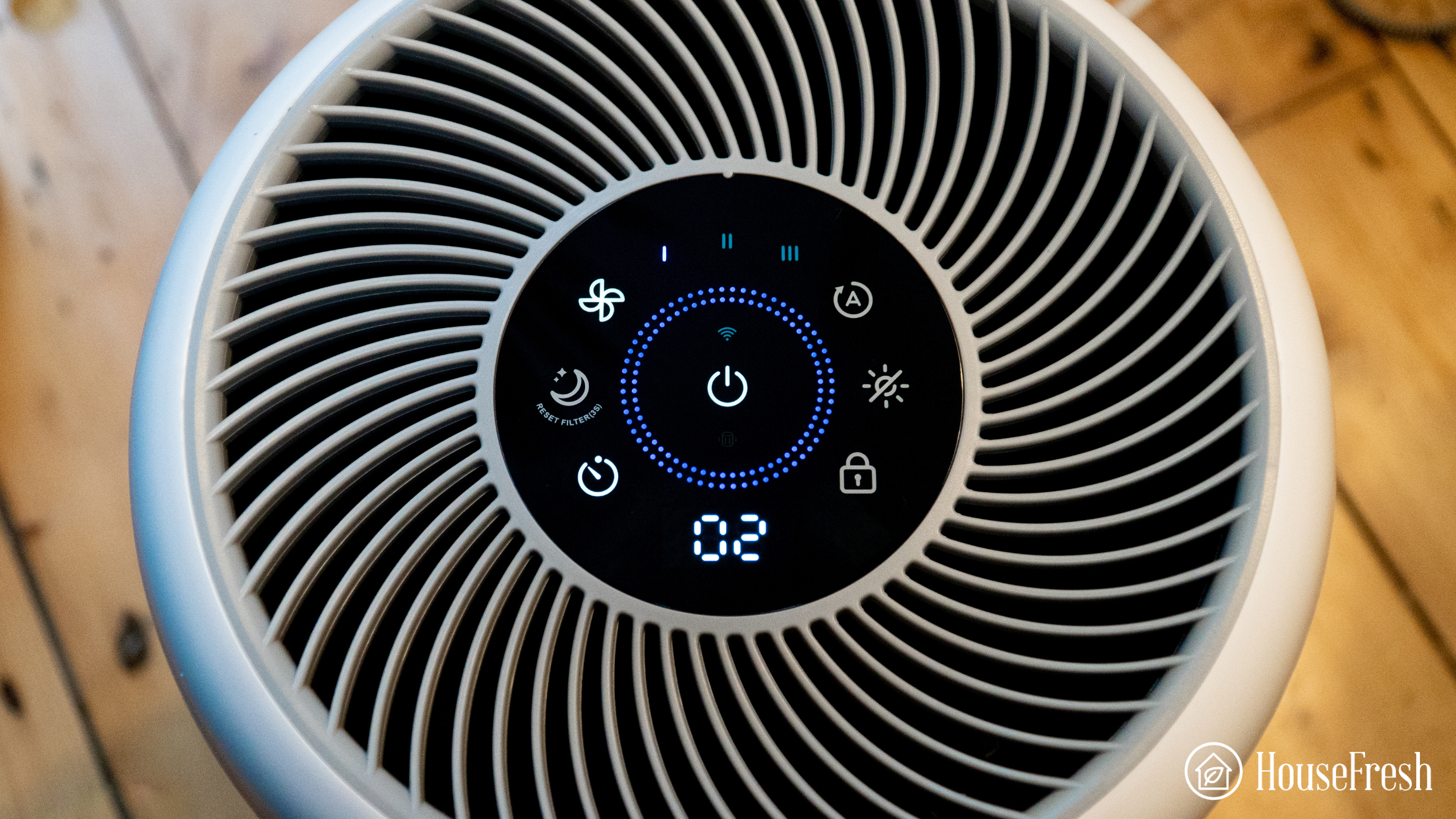
Physical reset clears outdated network information from your purifier’s memory. This process varies slightly across Levoit models but always involves holding a reset button during power-up. Skipping this critical step leaves old credentials interfering with new connections.
Core 200S Series WiFi Reset Procedure
- Unplug your purifier completely from the wall outlet
- Insert paperclip into the small reset hole near the power cord
- Hold reset button while plugging the unit back in
- Continue pressing until WiFi indicator blinks rapidly (5-10 seconds)
- Release button when light transitions to slow, steady blinking
Core 300S Series Touch Reset Method
The 300S replaces physical buttons with touch-sensitive controls. Press and hold both the timer and fan speed buttons simultaneously for 8 seconds while the unit powers on. Watch for the display to show rotating dashes during reset, then a flashing WiFi symbol confirming setup mode readiness.
PlasmaPro 400S Hidden Reset Location
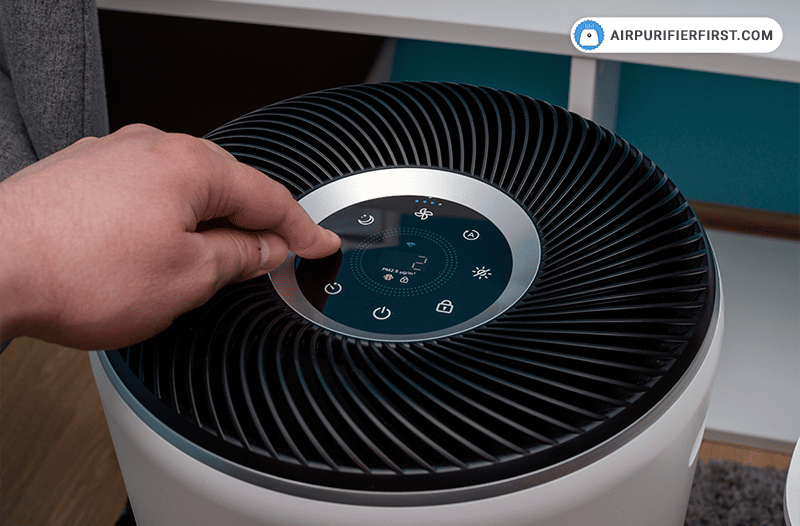
This premium model conceals its reset button behind the front filter panel. Open the door, locate the recessed button near the filter sensor, and press for 10 seconds while powered. The LED ring cycles through colors during reset, ending with a steady blue pulse when ready for pairing.
Connecting Your Levoit to New WiFi Through VeSync App
With your purifier in setup mode (slow WiFi blinking), open the VeSync app to complete the pairing process. The app automatically detects nearby Levoit devices broadcasting setup signals, but requires precise network entry to establish connection.
Exact App Connection Steps
- Open VeSync app and tap the “+” icon in top-right corner
- Select your specific purifier model from the device list
- Confirm the slow blinking WiFi indicator on your unit
- Enter new network credentials carefully—passwords are case-sensitive
- Wait for confirmation (typically 30-60 seconds of processing)
- Name your device descriptively like “Master Bedroom Purifier”
Fixing App Connection Failures Immediately
If VeSync can’t find your purifier, ensure your phone uses the same 2.4GHz network you’re connecting to—disable cellular data to force WiFi usage. Move within 10 feet of the router during setup to maximize signal strength. Restart both your phone and purifier if the app stalls at “Connecting…” for more than two minutes.
Confirming Successful WiFi Network Change
Multiple verification points confirm your Levoit air purifier successfully joined the new network. The physical unit’s WiFi indicator transitions from blinking to solid, while the VeSync app displays your updated network name in device settings within seconds of connection.
Quick Verification Checklist
- Check device list shows “Online” status instead of “Offline”
- Test remote power on/off through app controls
- Verify real-time PM2.5 readings update automatically
- Confirm scheduled cleanings activate as programmed
- Test voice commands if previously integrated with Alexa or Google
Solving Common WiFi Connection Problems
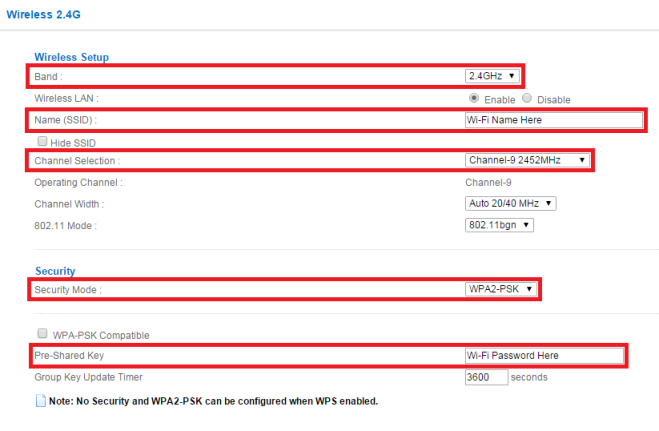
Password mistakes and hidden network settings cause most failed connections. Double-check your entry for capital letters, special characters, and spaces—Levoit purifiers won’t connect with incorrect credentials. Some routers hide the 2.4GHz band under “Advanced Wireless Settings” or append “_2.4G” to the network name.
Router Configuration Fixes That Work
Enable 802.11b/g/n mixed mode instead of limiting to newer protocols. Temporarily disable WPA3 security if your router defaults to this newer standard. Set channel width to 20MHz for maximum compatibility with smart home devices. These simple router adjustments resolve 80% of stubborn connection issues.
Critical App Permissions You Must Allow
Grant VeSync location permissions immediately—Android requires this to scan for nearby WiFi networks. Allow notifications to receive filter replacement alerts and air quality warnings. Disable battery optimization for VeSync to prevent background processes from sleeping during critical updates.
Optimizing Multiple Levoit Devices on One Network
Once connected, manage multiple purifiers efficiently using VeSync’s organizational features. The app supports up to 30 devices, making whole-home air quality monitoring seamless when properly configured.
Smart Multi-Device Strategies
Create room-specific names like “Upstairs Bedroom” or “Baby’s Nursery” for instant identification. Use device groups to activate all purifiers simultaneously during wildfire smoke events. Set geofencing schedules that automatically power units on 15 minutes before you arrive home based on your phone’s location.
Security Best Practices for Smart Purifiers
Change your WiFi password quarterly and update all connected devices immediately. Use separate guest networks for visiting family to maintain main network security. Periodically check router connected devices to detect unauthorized access attempts on your IoT ecosystem.
Preventing Future WiFi Disconnection Issues
Strategic placement and maintenance prevent most recurring connection problems. Position your purifier within 30 feet of your router, avoiding thick walls, metal appliances, and microwave ovens that interfere with 2.4GHz signals.
Signal Optimization Techniques That Work
Elevate your router to a central location away from cordless phones and baby monitors. Install WiFi extenders in larger homes to maintain strong 2.4GHz coverage throughout your space. Use free WiFi analyzer apps to identify channel congestion, switching to less crowded channels when neighborhood interference occurs.
Essential Firmware Update Protocol
Enable automatic updates in VeSync settings to receive critical performance improvements. For manual updates, navigate to device settings > “Firmware Update” and allow 5-10 minutes for completion. Never unplug during updates—interrupting this process can permanently disable smart functionality.
Changing WiFi on your Levoit air purifier restores full smart control within minutes when following the correct sequence. The physical reset clears outdated network credentials, while the VeSync app guides you through seamless reconnection to your updated network. Keep your WiFi password handy for future changes, position your purifier strategically for optimal signal strength, and perform quarterly maintenance checks to prevent unexpected disconnections. With these proven techniques, you’ll maintain uninterrupted remote monitoring and control of your home’s air quality regardless of network changes. Remember that all Levoit models require the 2.4GHz band—this single detail solves most connection frustrations before they begin. When in doubt, consult your specific model’s reset procedure as small variations exist between Core series, Vital series, and PlasmaPro units.