Your VeSync air purifier sits silently in the corner, but without Wi-Fi connection, it’s just gathering dust instead of data. That sleek device can’t monitor air quality, send filter alerts, or respond to your voice commands until you complete the essential step of connecting your VeSync air purifier to Wi-Fi. The frustration of tapping a non-responsive app while your purifier hums along unaware is all too common—but completely avoidable.
Most users waste valuable time trying to connect their VeSync air purifier to Wi-Fi only to discover they’ve been using the wrong network frequency. This guide cuts through the confusion with precise, model-specific instructions that get your purifier online in under 10 minutes. You’ll learn exactly which network settings cause 90% of connection failures and how to bypass them with simple workarounds.
Verify Your 2.4 GHz Network Compatibility
Why 5 GHz Networks Block Your Connection
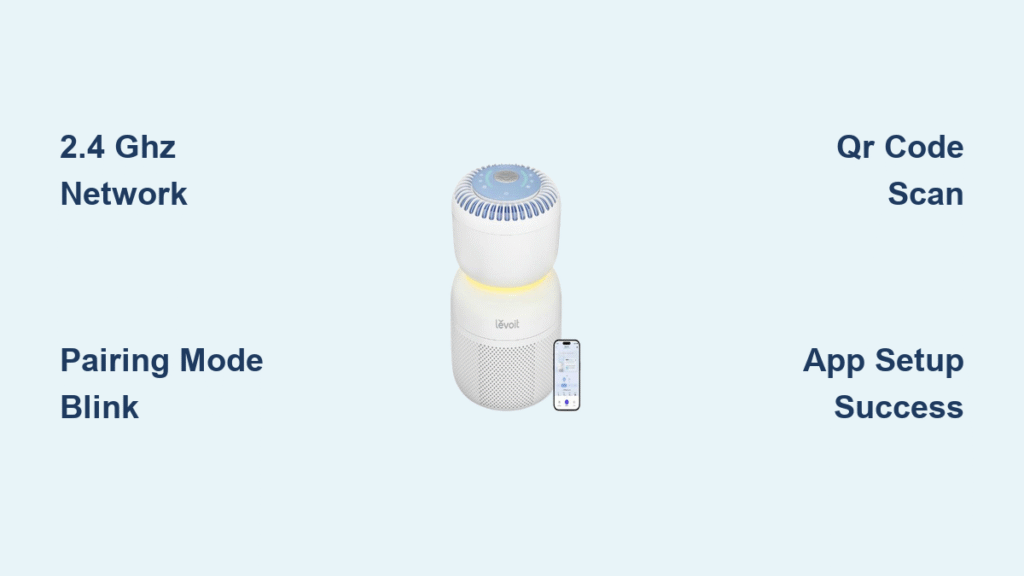
Your VeSync air purifier absolutely requires a 2.4 GHz Wi-Fi network—5 GHz connections simply won’t work. Most modern routers broadcast both frequencies simultaneously, often with identical network names. Check your phone’s Wi-Fi settings for network identifiers like “2.4” or “2G” at the end. If you can’t distinguish them, temporarily rename your 2.4 GHz network in your router settings to prevent connection errors during setup.
Test Signal Strength Before Starting
Place your VeSync air purifier within 15 feet of your router during initial setup—this proximity requirement surprises many users. Even if your phone shows full bars across the house, your purifier needs stronger signal strength for reliable connection. Conduct a quick test: power on your purifier, then slowly walk away from your router while watching the Wi-Fi indicator. If it turns off before reaching your desired location, you’ll need a Wi-Fi extender for permanent placement.
Decode Password Pitfalls
VeSync treats Wi-Fi passwords as case-sensitive, and invisible spaces at the end cause mysterious failures. Before starting the connection process for your VeSync air purifier to Wi-Fi, write down your password exactly as configured in your router settings. Pay special attention to special characters like !@#$%^&* which often auto-correct incorrectly in the VeSync app. If your password contains ambiguous characters like 0 (zero) and O (capital o), temporarily change it to something simpler for setup.
Activate Pairing Mode Correctly
Identify Your Model’s Wi-Fi Button
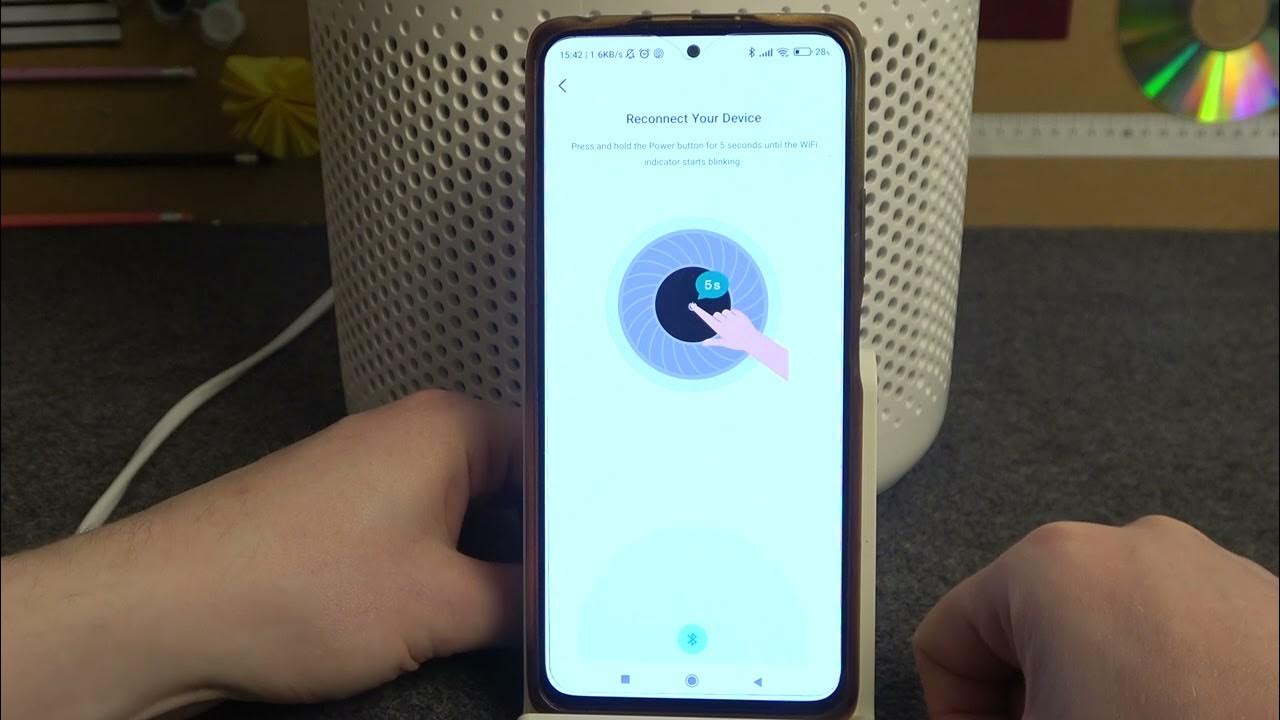
VeSync air purifiers have different pairing mechanisms depending on model. The Core 300/400S series has a dedicated Wi-Fi button on the top panel near the display. The LV-PUR131S uses the power button for both functions—press and hold for 5 seconds to reset, then again for pairing. The Core 200S requires gentle pressure on the touch-sensitive Wi-Fi icon. Knowing your specific model prevents wasted time pressing the wrong controls.
Recognize the Critical Blinking Pattern
After pressing the correct button for 3-5 seconds, your purifier’s Wi-Fi indicator should blink slowly—approximately once per second. This specific pattern means your device is broadcasting and ready for connection. If the light blinks rapidly (3-4 times per second), the device is already attempting to connect—wait for it to settle or reset completely. A solid light means it’s already connected to Wi-Fi, while no light indicates pairing mode isn’t active.
Reset Previous Network Settings
If your VeSync air purifier previously connected to Wi-Fi but now shows connection issues, perform a complete factory reset. Hold the power button for 10-15 seconds until all indicator lights flash simultaneously, then wait 30 seconds for the device to restart. This clears stubborn network configurations that often block successful reconnection. You’ll know it’s ready when the Wi-Fi indicator returns to slow blinking.
Execute the VeSync App Connection Process
Prepare Your Smartphone Correctly
Before opening the VeSync app, connect your phone to the 2.4 GHz network you want your purifier to use. Android users must enable location services—this non-intuitive requirement allows the app to scan for Wi-Fi networks. Both iOS and Android need Bluetooth enabled for initial device discovery. Grant all permission requests immediately; denying them creates connection barriers that require restarting the entire process.
Transfer Network Credentials via QR Code
The VeSync app generates a QR code containing your Wi-Fi credentials. Hold your phone 6-8 inches from the purifier’s sensor area until you hear a confirmation beep (about 5-10 seconds). Position the QR code directly in front of the sensor—tilting your phone causes scanning failures. If QR scanning fails after three attempts, switch to manual entry by typing the pairing code displayed on your purifier’s screen into the app.
Monitor Connection Progress Visually
During the 30-60 second connection window, watch your purifier’s Wi-Fi indicator for status updates. Rapid blinking (3-4 times per second) means it’s actively connecting to your network. A solid light confirms successful connection—don’t press any buttons during this critical phase. If the light turns off after 2 minutes, the connection failed; check your Wi-Fi password and retry with your phone closer to the purifier.
Troubleshoot Connection Failures Like a Pro

Fix “Network Not Found” Errors Immediately
When the VeSync app displays “network not found,” your phone is likely connected to the 5 GHz band. Go to Wi-Fi settings and manually select the 2.4 GHz version of your network. For dual-band routers, temporarily disable the 5 GHz broadcast in your router settings to prevent accidental connection. Move your purifier within 10 feet of the router—this short-term inconvenience prevents hours of frustration.
Resolve Device Discovery Failures
If the app can’t find your purifier, confirm the slow blinking pattern first. No blinking means pairing mode isn’t active—hold the Wi-Fi button longer. Clear Bluetooth cache on Android (Settings > Apps > VeSync > Storage > Clear Cache) to resolve 70% of discovery issues. For persistent problems, force close the VeSync app, restart your phone, and begin the setup process again with your purifier closer to the router.
Eliminate Password Authentication Errors
Authentication failures almost always mean password inaccuracies. Type your password slowly in the VeSync app, watching for autocorrect changing special characters. Some users with WPA3 security need to enable mixed mode in router settings. Create a temporary guest network with a simple password like “vesync123” to test if complex passwords cause your connection issues with the VeSync air purifier to Wi-Fi.
Verify and Optimize Your Connection

Confirm Two-Way Communication Works
Successful connection means you can control your purifier from the app and see real-time status updates. Test this by changing fan speeds remotely—commands should execute within 3 seconds. Check the app shows “Online” status with 3-4 signal bars. If controls work but status lags, your signal strength is borderline; consider a Wi-Fi extender for reliable operation.
Activate Smart Features Immediately
With your VeSync air purifier connected to Wi-Fi, enable scheduling to run clean-air cycles before you arrive home. Link to Alexa or Google Assistant through the app’s smart home section for voice control. Set up filter replacement alerts to avoid performance degradation—these notifications only work with active Wi-Fi connection. Explore the air quality history graph to identify pollution patterns in your home.
Maintain Connection Long-Term
Check your VeSync app weekly to ensure firmware updates install automatically—these often improve Wi-Fi stability. If you change your Wi-Fi password, you must repeat the entire connection process; your purifier won’t auto-reconnect to renamed networks. When relocating your purifier, test connection stability in the new position before final placement—metal objects and thick walls significantly weaken 2.4 GHz signals.
Your VeSync air purifier now connects to Wi-Fi reliably, transforming it from a basic appliance into an intelligent air quality manager. You’ve avoided the most common setup pitfalls that leave others frustrated and defeated. Enjoy remote control from bed, automatic scheduling for clean air upon arrival, and timely filter replacement alerts—all made possible by your successful Wi-Fi connection. The 10 minutes you invested pays dividends daily through healthier air and smarter home management.