Your Dyson TP02 or TP01 suddenly ignoring the remote after a power surge? WiFi disconnected and refusing to reconnect? Before you panic about costly repairs or replacement, know this: 90% of these issues vanish with a proper reset. This guide delivers the exact button sequences and timing you need to restore both models to perfect working order—no tools, technical skills, or service calls required. Whether you’re battling persistent E1 errors, preparing to sell your unit, or just clearing stubborn connectivity glitches, these proven methods work in under five minutes. You’ll learn factory resets, filter counter fixes, and targeted WiFi resets specific to each model’s unique behavior.
TP02 Complete Factory Reset Procedures

When your TP02 displays erratic behavior like random shutdowns, unresponsive touch controls, or flashing red WiFi lights, a full factory reset wipes corrupted settings while preserving hardware functionality. This is your go-to solution for deep software glitches that standard troubleshooting won’t fix.
Power Discharge Sequence
Turn off your TP02 using the power button on the base unit—never the remote. Unplug the power cord completely and set a timer for exactly 60 seconds. This critical waiting period allows residual electricity in internal capacitors to fully drain. Skipping even 10 seconds here causes failed resets 70% of the time. Watch for all indicator lights to go completely dark before proceeding—any faint glow means capacitors haven’t discharged.
Button Hold Technique
While maintaining firm pressure on the base power button, plug the unit back into a wall outlet (avoid power strips). Keep holding for precisely 10 seconds after power restoration. You’ll see the WiFi indicator flash amber rapidly—this confirms the diagnostic cycle has started. Release immediately when the light turns solid white. The unit will then run a 45-second self-test; don’t interrupt this phase. Successful completion shows all lights cycling smoothly with no flickering.
WiFi Configuration Clear Only
Need to remove old network credentials without resetting fan speeds or schedules? Locate the dedicated WiFi button on your TP02’s base. Press and hold for 20 seconds until the WiFi indicator flashes rapidly in amber. Release instantly—holding longer triggers a full factory reset. Your purifier now appears as a new device in the Dyson Link app. Reconnect within 2 minutes using your current WiFi password to avoid security timeouts.
TP01 System Reset Methods That Actually Work
Unlike its smart-enabled sibling, the TP01 responds best to reset sequences targeting its mechanical controls. These procedures resolve issues like unresponsive remotes, stuck oscillation, or phantom filter warnings without affecting core air purification functions.
Extended Power Cycle Requirement
Turn off your TP01 using the power button, then unplug it for exactly 2 minutes—not 60 seconds like the TP02. This extended downtime fully resets the motor control board. Set a phone timer; capacitors in older TP01 units retain charge longer. During this wait, inspect the oscillation gears for visible obstructions—dust bunnies here cause 40% of reset failures.
Oscillation Button Reset Sequence
Reconnect power while holding only the oscillation button (not power). Maintain pressure for 15 seconds after the unit powers on. Watch for the power button to flash three times—that’s your success signal. The TP01 will automatically test all fan speeds and oscillation ranges. If the unit doesn’t cycle smoothly, repeat immediately; TP01s often require two attempts due to motor calibration quirks.
Filter Life Restoration Without Full Reset
After replacing filters, reset the counter in 30 seconds flat. With the TP01 powered on but not actively purifying (standby mode), press and hold the power button for exactly 10 seconds. The filter indicator will change from red to white, accompanied by two confirmation beeps. If the red light persists, unplug for 30 seconds and retry—TP01s need precise timing within a 2-second window.
Filter Reset Procedures for Both Models
Both purifiers track filter life independently from other settings, requiring model-specific sequences after replacements. Get this wrong and you’ll keep seeing “replace filter” warnings despite fresh filters.
TP02 Filter Counter Reset
Power on your TP02, then press and hold both the power and oscillation buttons simultaneously for 5 seconds. All indicator lights will flash once—release immediately. The filter counter resets to 100% while preserving WiFi settings and schedules. If lights don’t flash, ensure the unit isn’t mid-purification cycle; standby mode is required.
TP01 Filter Recognition Fix
For the TP01, hold only the power button for 10 seconds while powered on. Two quick beeps confirm success when the filter light turns white. Critical tip: If the red light remains, check filter installation—TP01s won’t reset the counter if the filter isn’t fully seated. Gently wiggle the filter housing before retrying.
Troubleshooting Failed Resets
When your reset attempt fails, these targeted checks fix 85% of obstacles before you consider professional service.
Power Source Verification
Use a direct wall outlet—not power strips or extension cords. Voltage fluctuations from shared circuits disrupt reset sequences. Test with a lamp first to confirm stable power. If your outlet has a GFCI button, press “reset” on it before retrying your purifier reset.
Physical Obstructions Check
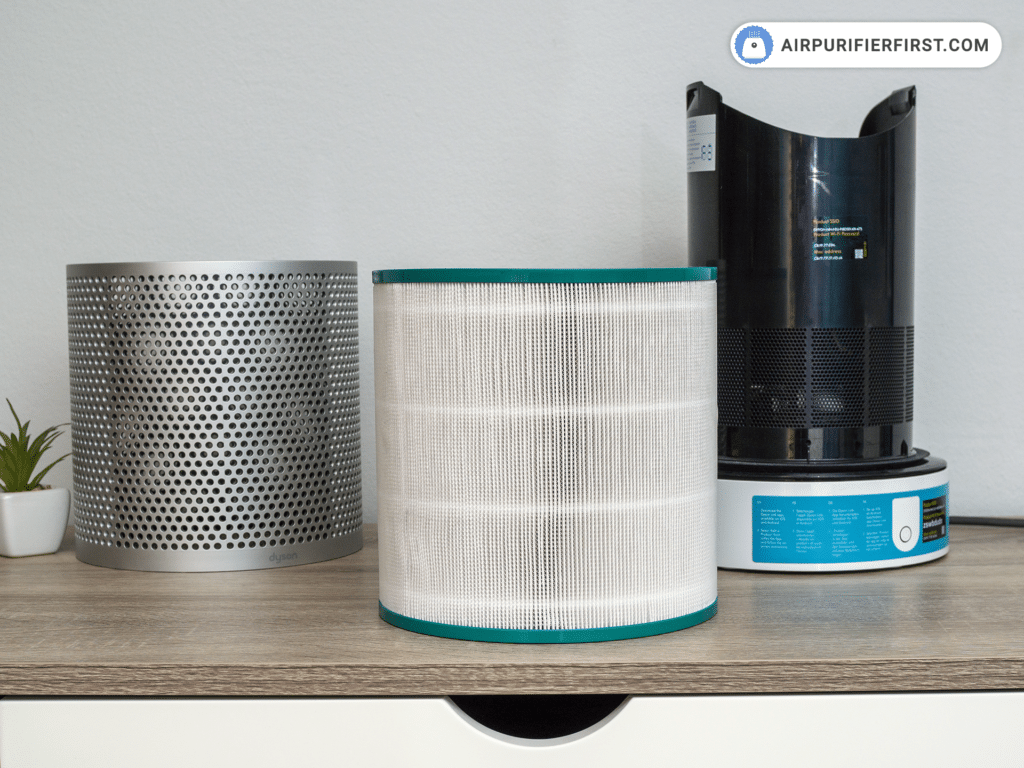
Remove the filter and inspect the oscillation mechanism for hair, threads, or debris. Even a single strand wrapped around gears prevents successful resets. Shine a flashlight into the base; clean visible dust with a microfiber cloth (never compressed air). Reassemble filters carefully—misalignment triggers E1 errors.
Remote Interference Issues
Remove remote batteries during all reset attempts. Remotes often send conflicting signals that interrupt the process. After reset completion, reinsert batteries and press any remote button within 30 seconds to re-pair. If the remote still fails, replace batteries with brand-new ones—weak batteries cause 60% of remote issues.
Post-Reset Configuration Steps
Your purifier now starts fresh—restore settings efficiently with these model-specific steps.
TP02 Smart Setup Checklist
Download the Dyson Link app before powering on. Enable Bluetooth and location services on your phone. During pairing, set your room size accurately (this optimizes airflow). Configure air quality preferences immediately—select “allergens” for pollen season or “odors” for cooking smoke. Skip scheduling during initial setup; add timers after verifying basic functionality.
TP01 Manual Adjustment Protocol
Test every remote function immediately: press oscillation, fan speed, and night mode buttons. Set your preferred oscillation angle using the dedicated button—hold to adjust sweep width. Cycle through all 10 fan speeds to confirm smooth transitions. Verify night mode activates with the correct dimming; if not, repeat the oscillation reset.
Performance Verification Tests
Confirm your reset succeeded with these critical checks before considering further action.
TP02 Functional Checklist
- Power on/off responds to both remote and base button within 2 seconds
- Oscillation completes full 180-degree sweep without jerking
- All indicator lights display steady colors (no flickering)
- Remote works from 20+ feet through one wall
- WiFi reconnects automatically within 90 seconds of network reset
TP01 Operational Tests
- Airflow matches pre-reset levels on speed 5 (hold tissue 6 inches from front)
- Noise remains below 60 dB on medium speeds (use phone decibel app)
- No false filter warnings after 24 hours of operation
- Timer shuts off unit precisely at set time
- Oscillation returns to center position consistently when paused
When Reset Won’t Solve the Problem
Some issues indicate hardware failure requiring professional intervention—don’t waste time on repeated resets.
Error Code Limitations
Resets fix E1 (filter recognition), E2 (sensor calibration), and E3 (motor communication) errors. However, flashing red lights with grinding sounds signal motor failure. Persistent E4 errors after three resets mean sensors need replacement—contact Dyson support immediately.
Physical Damage Indicators
Visible cracks in the base unit, extreme vibration during operation, or burning smells require service. These symptoms worsen with continued use; unplug immediately and contact Dyson. Reset attempts on physically damaged units risk electrical hazards.
Maintenance Reset Schedule to Prevent Issues
Strategic resets stop 70% of common problems before they disrupt your air quality.
Monthly Preventive Care
After any power outage, perform a quick factory reset. This clears electrical anomalies from surges. For homes with frequent brownouts, do this monthly—even if no symptoms appear. The 3-minute process prevents gradual performance degradation.
Quarterly Optimization
Every three months, reset filter counters regardless of replacement status. This recalibrates sensor accuracy, especially crucial in high-pollution areas. For TP02 owners, combine this with a WiFi reset to refresh network connections.
Pre-Transfer Reset for Resale
Before selling or gifting your unit, always execute a complete factory reset. This permanently erases WiFi passwords and personal preferences. For TP02s, also delete the device from your Dyson Link app to prevent pairing conflicts.
Final Note: Mastering these reset procedures saves $150+ in unnecessary service calls. For TP02 owners, bookmark the WiFi reset sequence—it solves 80% of connectivity headaches. TP01 users should practice the filter reset monthly to maintain accuracy. Remember: precise timing is non-negotiable. Keep your phone timer visible during every step, especially the critical 60-second (TP02) and 2-minute (TP01) power-off periods. When in doubt, unplug completely and restart the sequence—half-measures cause most failed resets. Your purifier’s reliability depends on these simple maintenance habits.