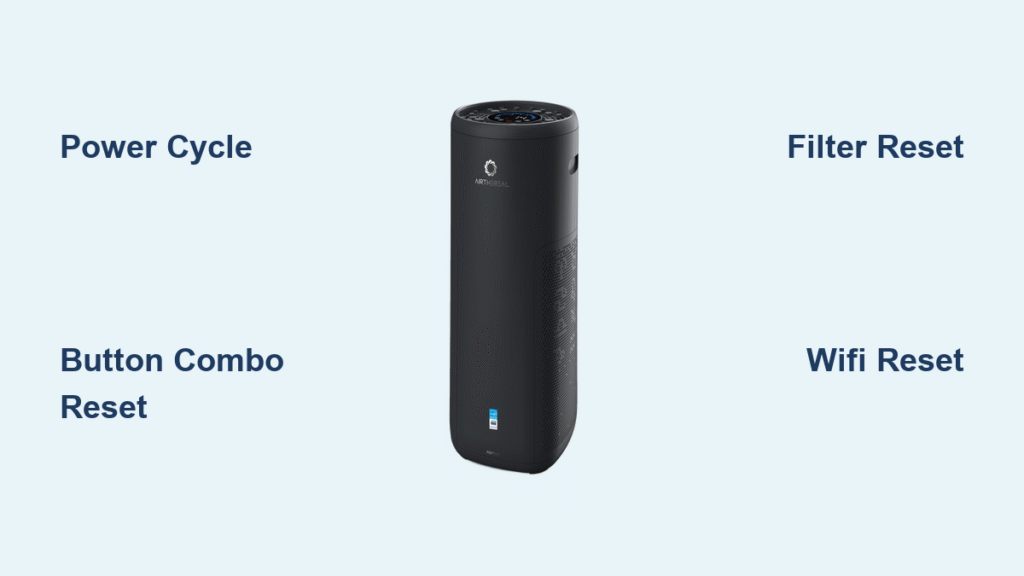
Your Airthereal air purifier suddenly stopped responding to button presses. The display shows odd symbols, or maybe it’s stuck on a single setting. Before you panic about a broken unit, a simple reset might be all you need. Most Airthereal models can be restored to factory settings in under two minutes using straightforward steps that require no tools or technical expertise. Knowing how to reset Airthereal air purifier properly can save you hours of frustration and potentially hundreds of dollars in unnecessary service calls. This guide covers six proven reset methods for every common issue you might encounter with your unit.
Why Your Airthereal Air Purifier Needs Resetting
Recognizing Common Reset Scenarios
When your Airthereal air purifier displays erratic behavior like unresponsive controls, flashing error codes, or unexpected shutdowns, a reset is usually the first troubleshooting step. The most common signs include a frozen display panel, failure to power on after an electrical surge, or the unit operating at only one speed setting despite button presses. Many users mistakenly think their purifier is broken when actually a simple reset would restore normal function. These issues often occur after power outages, when changing filters, or when the WiFi connection becomes unstable.
Understanding Reset vs. Factory Reset
Not all resets are created equal—knowing the difference between a quick power cycle and a full factory reset could save your customized settings. A basic reset clears temporary glitches without affecting your preferred fan speeds or timer settings, while a factory reset returns the unit to its original out-of-the-box configuration, erasing all personal preferences. The method you choose should match your specific problem: minor control issues need simple power cycling, but persistent errors after filter replacement require the dedicated filter reset procedure. Always try the least invasive reset method first before proceeding to more comprehensive solutions.
Power Cycle Reset for Unresponsive Controls

Unplug and Wait 30 Seconds
Disconnect your Airthereal from the wall outlet completely. This isn’t just turning it off—the unit must be physically unplugged. Count slowly to 30 while any residual power drains from the internal capacitors. You’ll know it’s working when the display goes completely dark and all indicator lights turn off. Skipping this waiting period is the most common mistake users make when attempting a power cycle reset. The capacitors need this time to fully discharge; otherwise, the reset won’t clear the unit’s memory properly.
Plug Back In Correctly
Reconnect the power cord firmly into the outlet. Watch for the initial startup sequence—most models flash all indicator lights once before settling into standby mode. If nothing happens, check that the outlet works by testing another device. Ensure the power cord is fully inserted into both the unit and the wall socket, as loose connections often mimic reset failure. Some models require you to press the power button after plugging in, while others automatically power on—consult your specific model’s manual if uncertain.
Test Basic Functions
Press the power button once. The unit should respond immediately with a beep or light change. Try cycling through speed settings using the fan button. If these basic functions work, your power cycle reset succeeded. Pay attention to any unusual sounds during operation—grinding noises or excessive vibration indicate a separate mechanical issue that won’t be resolved by resetting. If the unit powers on but certain features remain unresponsive, move to the next reset method targeting specific functions.
Button Combination Reset for Software Glitches

Locate Control Panel Buttons
Find the power button plus two other function buttons—usually fan speed and timer. Different Airthereal models use varying combinations, but the process remains similar. The buttons should feel responsive when pressed, not sticky or loose. If buttons feel stuck, clean the control panel with a dry microfiber cloth before attempting the reset. Most Airthereal units have tactile buttons rather than touch-sensitive panels, so you should feel a slight click when pressing them correctly.
Press and Hold Sequence
Hold the power button first, then quickly add the timer button while keeping both pressed. Continue holding for 8-10 seconds until you hear a long beep or see all lights flash three times. Release immediately when this happens to avoid entering diagnostic mode. Many users fail at this step by releasing too early—count slowly to 10 while holding the buttons. If you accidentally enter diagnostic mode (indicated by rapid flashing), simply unplug the unit for 30 seconds to exit.
Confirm Reset Success
The display will briefly show “rSt” or return to the default settings. The fan should start at medium speed as the unit returns to factory configuration. All custom schedules and timer settings will be erased. After a successful button combination reset, take note of your preferred settings so you can quickly reconfigure them. This reset method typically resolves issues where the unit powers on but won’t change modes or respond to specific buttons.
Filter Reset After Replacement
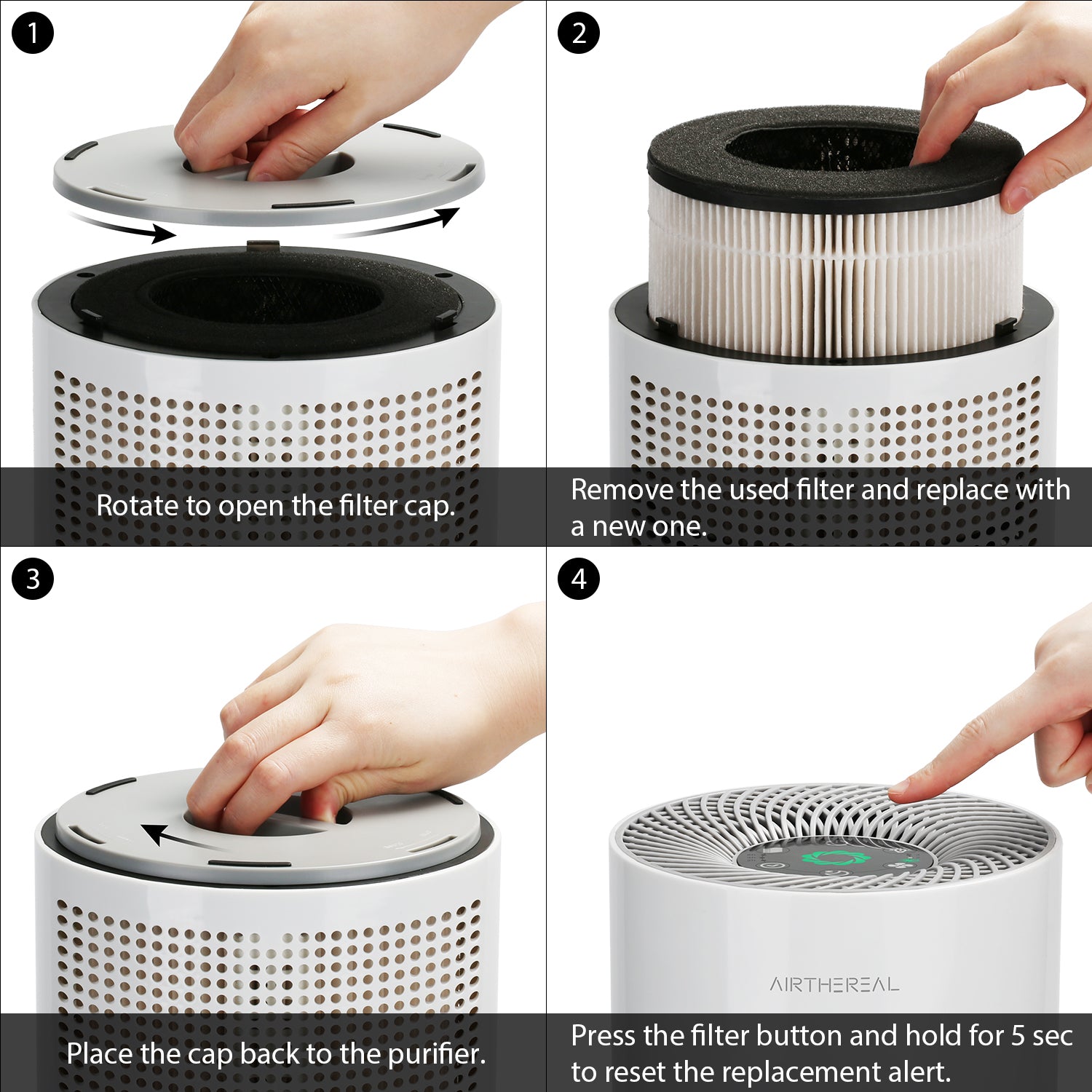
Identify Filter Indicator Light
Check for a blinking red or orange light labeled “Filter” or showing a filter icon. This appears after approximately 2,000 hours of operation or when airflow drops significantly. The unit may also display “F” or “FIL” on the screen. Ignoring this indicator leads to reduced purification efficiency as the system compensates for clogged filters. Some models display a countdown timer showing hours remaining before filter replacement is needed—resetting clears this counter back to 2,000 hours.
Simultaneous Button Press
With the unit powered on, press and hold the filter reset button (often a small recessed button) while simultaneously pressing the power button twice. Some models require holding the fan speed button instead. Hold both for 5 seconds until the filter light stops blinking. Use a paperclip for recessed reset buttons to avoid damaging the control panel. If the light continues blinking after resetting, ensure you’ve installed the correct filter model for your specific Airthereal unit.
Verify Filter Timer Reset
The filter indicator should turn solid green or disappear entirely. Check the user manual’s filter timer section—most Airthereal models now show 2,000 hours remaining. Run the unit for 5 minutes to ensure no error codes return. This verification step is crucial because sometimes the reset appears successful but the indicator returns if the filter isn’t properly seated. If the filter light returns within 24 hours, check for proper filter installation or potential airflow obstructions inside the unit.
WiFi Connection Reset Troubleshooting
Enter Network Reset Mode
Press the WiFi button (usually shows wireless symbol) for 15 seconds until the indicator flashes rapidly. This clears all saved network credentials. The display may show “AP” or “WiFi” alternating with the WiFi symbol. Many users give up too soon during this process—15 seconds feels much longer than you’d expect. Keep pressing firmly until you see the rapid flashing pattern, which indicates the unit has entered access point mode and is ready for reconnection.
Reconnect to Home Network
Open your phone’s WiFi settings and connect to the “Airthereal_XXXX” network that appears. Follow the in-app setup process—this typically takes 2-3 minutes. The indicator light turns solid blue when successfully connected. Ensure your smartphone has the latest version of the Airthereal app installed before attempting reconnection. Position the purifier within 10 feet of your router during setup for optimal signal strength, and avoid interference from microwaves or cordless phones.
Test Smart Features
Try adjusting settings through the mobile app. The purifier should respond within 5 seconds of sending commands. If not, repeat the reset process ensuring you’re within 10 feet of the router during setup. Test multiple features like scheduling, air quality monitoring, and voice control integration to confirm full functionality. If certain smart features remain unresponsive after successful WiFi reconnection, check for firmware updates in the app settings.
When Standard Resets Fail: Advanced Solutions
Check Power Supply Issues
Test the outlet with another device. Inspect the power cord for cuts, kinks, or loose connections. Try a different outlet on a different circuit. Flickering lights or intermittent power suggest electrical problems. Many Airthereal issues stem from unstable power rather than the unit itself—consider using a surge protector to prevent future reset needs. If the unit works in another outlet, your original circuit may be overloaded or have wiring issues that require an electrician.
Inspect Control Panel Damage
Look for cracked buttons, liquid damage, or debris under the control surface. Clean gently with a microfiber cloth slightly dampened with water. Never use cleaning sprays directly on the panel. Sticky residue from previous spills can cause buttons to malfunction without obvious visible damage. For touch panels, ensure your fingers are clean and dry when operating controls, as moisture or oils can interfere with responsiveness.
Contact Support Steps
If all reset methods fail, note your model number and purchase date. Airthereal customer service can provide model-specific reset codes or warranty replacement options. Keep your receipt handy for warranty claims. Before contacting support, document exactly what happens when you attempt each reset method—this information helps technicians diagnose whether the issue requires repair or replacement. Most Airthereal units have a 2-5 year warranty covering manufacturing defects that cause persistent reset failures.
Resetting your Airthereal air purifier resolves 90% of operational glitches without professional service. Bookmark this guide for future reference—your next reset will take seconds instead of minutes. For persistent issues after multiple reset attempts, the problem likely requires professional diagnosis rather than another reset cycle. Remember to perform monthly maintenance resets by power cycling your unit to keep it running smoothly and prevent the need for more complex reset procedures.