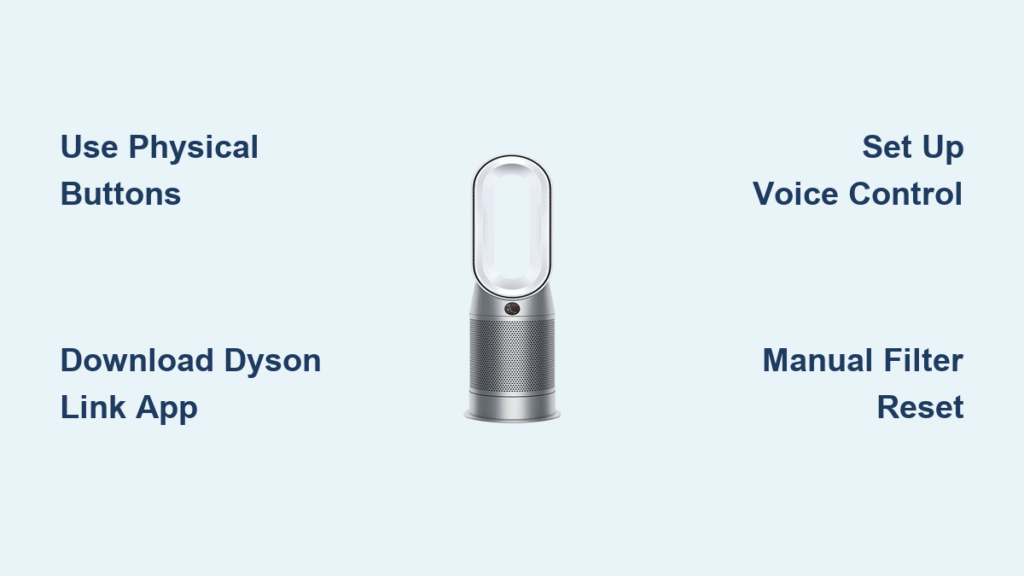
You’ve just settled in for the night when you realize your Dyson air purifier remote has vanished—again. Don’t worry, your purifier isn’t useless. Every Dyson air purifier includes multiple control methods that work perfectly without the physical remote, and many users actually discover these alternatives offer superior functionality. Whether your remote is lost under the couch, broken, or simply across the room, you can maintain complete control over your air quality.
Your Dyson continues working flawlessly through built-in physical buttons, smartphone app connectivity, and voice commands. In fact, the Dyson Link app provides air quality monitoring and scheduling features that outperform the basic remote. This guide reveals exactly how to operate your purifier without the remote, covering every model and control method.
Physical Controls on Your Dyson Unit
Every Dyson air purifier has manual controls built directly into the unit, often providing faster access than hunting for the remote. These physical buttons deliver instant response without pairing requirements.
Locate Your Model’s Control Panel
TP Series (Tower Models): Check the front lower portion of the base where controls sit slightly recessed to prevent accidental presses. These are positioned for easy thumb access while standing in front of the unit.
DP Series (Desktop Models): Find the control panel on the top surface of the base unit, designed for quick access when standing over your purifier on a desk or table.
HP Series (Hot+Cool Models): Look for the touch-sensitive control ring integrated into the base. These buttons illuminate automatically when your hand approaches, creating a seamless appearance while remaining fully functional.
Master Essential Button Functions
Power Button (⏻): A quick press wakes your unit from standby, while holding for 3 seconds initiates full shutdown. The purifier remembers your last settings when powered back on—no need to reset preferences.
Speed Controls: Direct buttons labeled 1-10 let you jump to any speed instantly. Unlike the remote, you don’t need to cycle through each level—you can go straight to your preferred setting.
Mode Button: Press to cycle through three essential modes:
– Auto: Automatically adjusts based on real-time air quality readings
– Night: Reduces noise and dims lights for undisturbed sleep
– Manual: Maintains your selected speed and settings
Oscillation Toggle: A single button activates the 350-degree rotation feature. An LED indicator shows when oscillation is active—solid light means it’s working properly.
Timer Settings: Press sequentially to set operation periods of 1, 2, 4, or 8 hours. The unit automatically shuts off when the timer completes, perfect for energy savings while you sleep.
Dyson Link App: Your Ultimate Remote Replacement
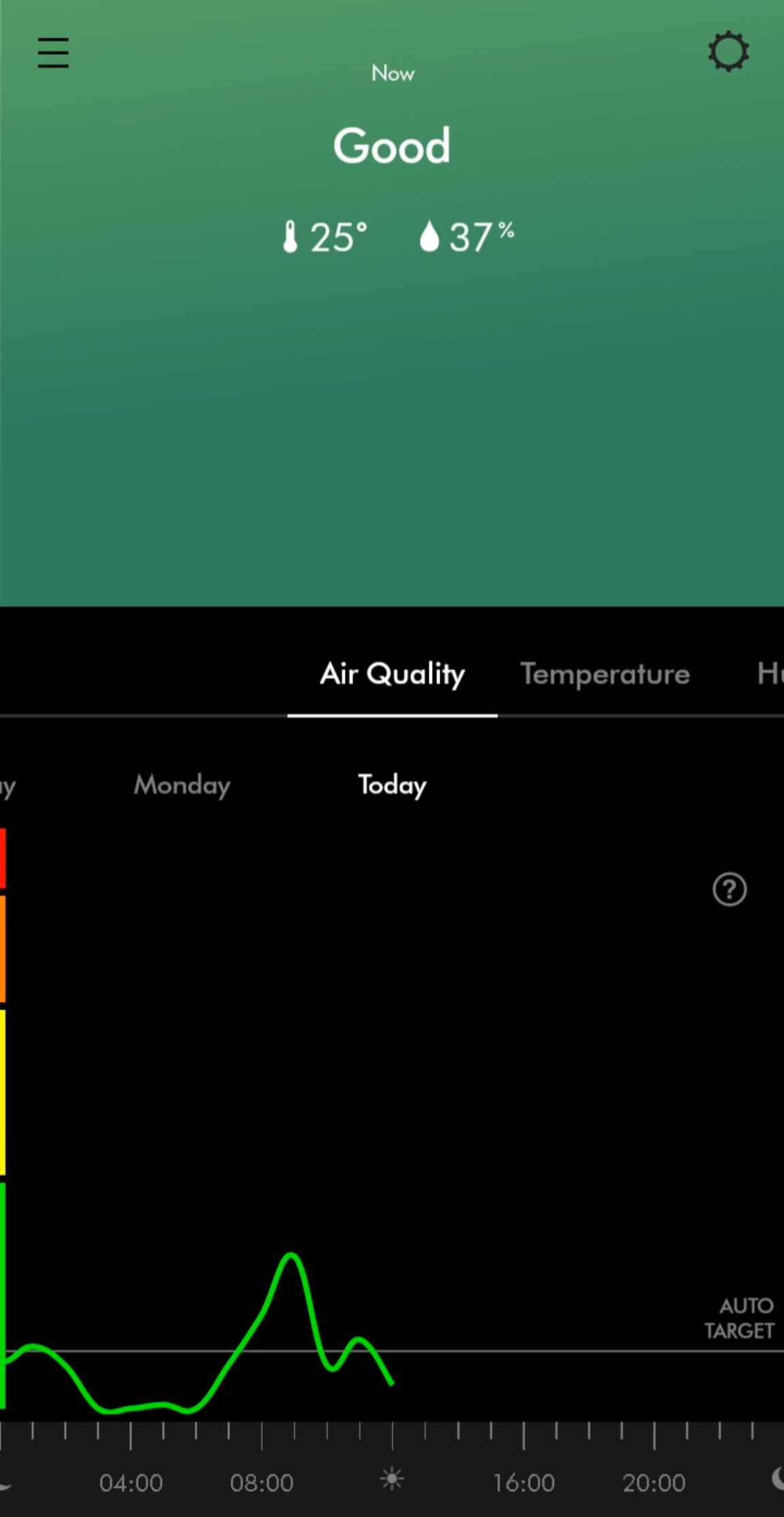
The Dyson Link app transforms your smartphone into a powerful control center that surpasses the physical remote’s capabilities. Setup takes less than 5 minutes and unlocks features you never knew your purifier had.
Complete App Setup in Minutes
Step 1: Download “Dyson Link” from your device’s app store (requires iOS 11+ or Android 7+).
Step 2: Create your Dyson account—this syncs settings across all your devices automatically.
Step 3: Put your purifier in pairing mode by holding the power button for 5 seconds until the WiFi indicator flashes blue.
Step 4: Connect to your 2.4GHz WiFi network (5GHz works on newer models after initial setup).
Step 5: Name your purifier by room location for easy identification and future voice commands.
App Features That Outperform the Remote
Precise Control: Adjust fan speed in single increments from 1-10 plus auto mode. Set exact oscillation angles or custom sweep ranges unavailable through physical buttons.
Real-time Air Quality Dashboard: Monitor PM2.5, PM10, VOCs, NO2, temperature, and humidity with historical graphs showing trends over time.
Smart Scheduling: Create complex routines like “bedroom purifier runs at speed 3 from 10 PM to 6 AM, Monday through Friday.”
Remote Access: Control your purifier from anywhere with internet connectivity—perfect for pre-purifying rooms before you arrive home.
Filter Monitoring: The app tracks exact filter life and automatically notifies when replacement is needed, even suggesting when to reorder.
Voice Control Setup Guide
Voice commands offer hands-free operation that’s often faster than finding any remote, especially when your hands are full or you’re relaxing.
Amazon Alexa Integration
Setup: Open the Alexa app → Skills & Games → Search “Dyson” → Enable → Link your Dyson account → Discover devices.
Essential Commands:
– “Alexa, turn on the bedroom air purifier”
– “Set the living room purifier to speed 7”
– “Enable night mode on the office purifier”
– “What’s the air quality in the nursery?”
Google Assistant Setup
Setup: Open Google Home app → Add → Set up device → Works with Google → Search “Dyson” → Link account.
Natural Language Examples:
– “Hey Google, turn on air purifier”
– “Set bedroom purifier to auto”
– “Start oscillation in the living room”
– “Is the air clean in my office?”
Troubleshooting Remote Loss Issues
When your remote disappears permanently, take these steps to ensure seamless operation without interruption.
Factory Reset and Re-pairing
Step 1: Hold the power button for 20 seconds until all indicators flash white. Release immediately.
Step 2: The unit restarts with default settings while maintaining your WiFi connection.
Step 3: If needed, repeat the app setup process to restore custom schedules and preferences.
Pro Tip: Take photos of your preferred settings before resetting to recreate them quickly in the app.
Model-Specific Control Differences

Pure Cool TP Series Controls
TP01/TP02: Limited physical buttons (power, speed, oscillation only). The app is required for full feature access and air quality monitoring.
TP04/TP06: Additional mode selection and timer buttons on the base unit provide more control without app dependency.
TP07/TP09: Feature an LCD screen on the base that confirms all settings changes visually, reducing app reliance.
Pure Hot+Cool HP Series
HP01/HP02: Include temperature adjustment buttons for heating mode directly on the base.
HP04/HP06: Separate heating and cooling mode buttons eliminate the need for app control during seasonal transitions.
HP07/HP09: Touch-sensitive base ring controls provide haptic feedback for each press, making physical operation more intuitive.
Operating Without Any Electronic Interface
When power outages or connectivity issues occur, your purifier still functions with basic operation.
Manual Operation Basics
Direct Power Connection: Plugging in the unit activates your last settings automatically. No remote or app needed for basic operation.
Physical Switch Method: Some models include a master power switch on the base for basic on/off functionality during connectivity issues.
Emergency Protocol
Power Cycling: Unplug for 30 seconds, then reconnect. The unit restarts with safe default settings.
LED Status Guide:
– Solid blue: Normal operation
– Flashing blue: WiFi connectivity issues
– Solid red: Filter needs replacement
– Flashing red: Contact customer service
Maintenance Without Remote Reminders
Filter Replacement Process
Physical Access: All filters remove through the base unit without tools or remote functions—simply twist and lift.
Reset Procedure: After replacing filters, hold the power button for 5 seconds to reset the filter life indicator.
App Tracking: The Dyson Link app sends detailed notifications when filters approach end of life, even suggesting reorder quantities based on your usage patterns.
Cleaning Mode Activation
Safe Cleaning Setup: Hold oscillation and power buttons together for 3 seconds. The unit enters a low-power cleaning mode that prevents dust dispersion during filter maintenance.
Manual Inspection Schedule: Use your phone’s calendar to set monthly filter check reminders when not using app notifications for maintenance tracking.
Advanced Features Beyond Remote Capabilities
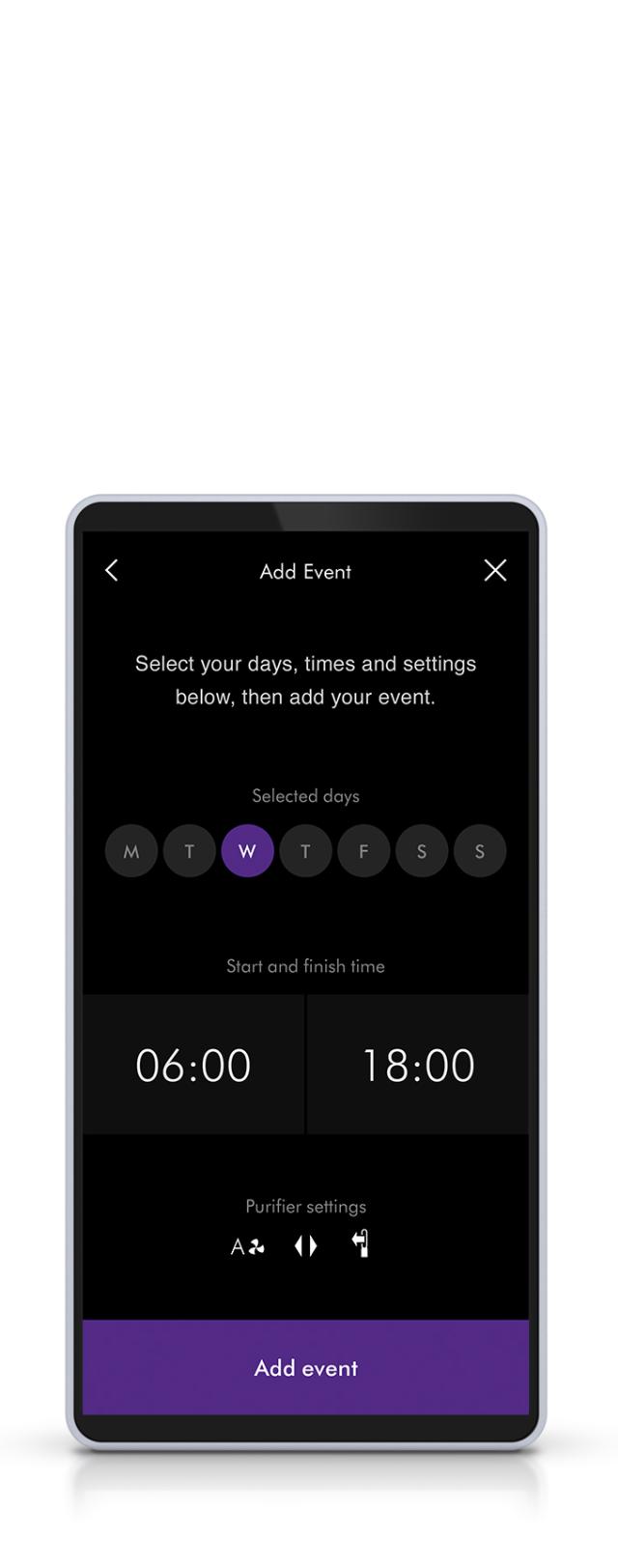
Smart Scheduling Features
The app enables schedules impossible with physical remotes:
– Weekly patterns: Different settings for weekdays versus weekends
– Multiple periods: Morning, afternoon, and evening routines in one day
– Seasonal variations: Adjust sensitivity during high pollen seasons
– Vacation mode: Reduced operation while away for energy savings
Geofencing and Automation
Location Triggers: Your purifier activates automatically when you approach home, using your phone’s GPS.
Weather Integration: Automatically increases purification during high pollen days or wildfire smoke events.
Smart Home Routines: Combine with smart thermostats for complete air quality management.
Cost Benefits of Remote-Free Operation
Immediate Savings
No Replacement Cost: Using the app saves $25-35 compared to buying a new physical remote.
Enhanced Value: App air quality monitoring replaces separate sensors costing $50-100.
Long-term Benefits
Energy Analytics: Usage data enables 15-30% energy savings through optimized scheduling.
Filter Efficiency: Precise monitoring prevents premature replacements, saving $50+ annually.
Pro Tip: The app’s geofencing feature alone can reduce energy costs by 20% by avoiding unnecessary operation when you’re away.
Final Takeaways for Remote-Free Operation
Your Dyson air purifier functions perfectly without the physical remote, and you might discover you prefer these alternative control methods. The physical buttons provide instant response, while the Dyson Link app offers superior monitoring and scheduling capabilities that transform your purifier into a smart air quality management system.
Start by exploring your unit’s physical controls—they’re faster than you think for basic functions. Then download the Dyson Link app to unlock the full potential of your purifier, including real-time air quality data and automated scheduling. Set up voice control for hands-free operation that works better than fumbling for a physical remote.
Even if you eventually find your missing remote, you’ll likely continue using these alternative control methods for their enhanced functionality. Your air quality management just became more powerful, convenient, and cost-effective—all without that small plastic remote.