Your Winix C545 air purifier sits on the shelf, indicator light blinking stubbornly amber instead of the expected blue, refusing to connect to your home WiFi network. You’ve triple-checked your password, restarted both the device and router multiple times, yet that frustrating “connection failed” message persists. This common WiFi connectivity issue affects countless Winix C545 owners who purchased the device specifically for its smart features and remote control capabilities through the Winix app.
If your Winix air purifier C545 WiFi not working problem has you ready to abandon smart functionality altogether, don’t give up yet. While official documentation on these connectivity issues remains frustratingly sparse, this guide compiles the most effective troubleshooting methods verified by thousands of users. You’ll discover exactly why these connection failures occur and how to fix them in under 30 minutes—without waiting on hold with customer support.
Why Your Winix C545 Won’t Connect to WiFi
Initial Setup Connection Failures Explained
Most Winix C545 WiFi not working problems occur during first-time setup, especially with modern dual-band routers. The device detects your network but fails at the authentication stage, even when you’ve entered the correct password. This happens because many newer routers use “band steering” technology that combines 2.4GHz and 5GHz networks under a single name, causing the C545 to attempt connecting to the incompatible 5GHz band.
Key symptoms to identify this issue:
– “Connection failed” message immediately after password entry
– Device disappears from available networks after initial detection
– Solid amber WiFi indicator that never transitions to blue
Intermittent Disconnection Patterns
If your C545 connects initially but drops offline randomly throughout the day, you’re dealing with a different problem than initial setup failures. These intermittent disconnections typically last between 2-6 hours before requiring manual reconnection and often occur overnight or during router maintenance cycles. This pattern suggests network interference or power management conflicts rather than authentication problems.
Critical WiFi Requirements You Must Meet

2.4GHz Network Configuration Essentials
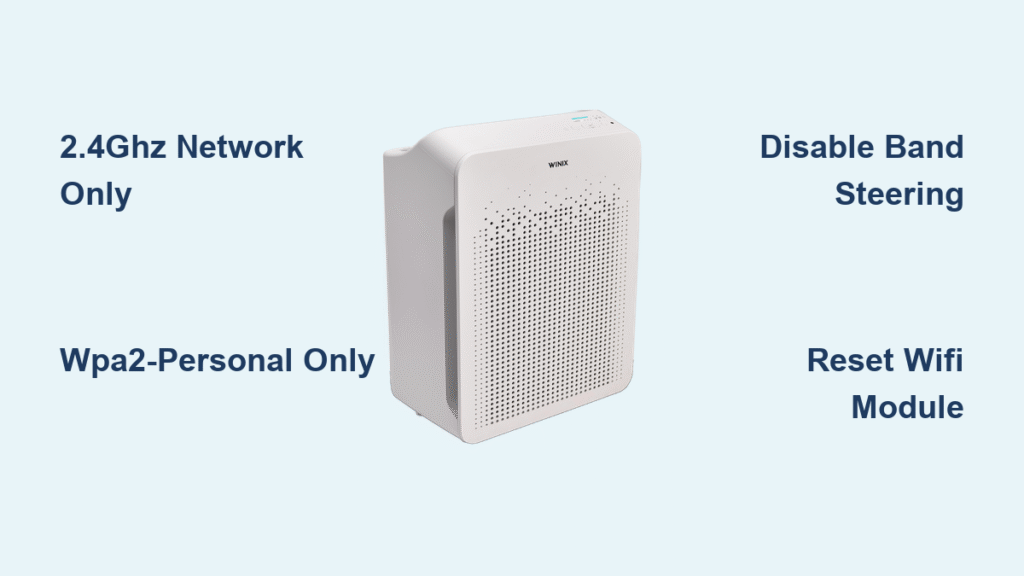
The Winix C545 operates exclusively on 2.4GHz networks using 802.11 b/g/n standards—it cannot connect to 5GHz networks. Many users waste hours troubleshooting when their router broadcasts both bands under the same network name.
Immediate router fixes:
– Disable band steering or “smart connect” features in your router settings
– Create a separate 2.4GHz network if your router supports it
– Set channel width to 20MHz instead of 40MHz or 80MHz
Security Protocol Compatibility Fixes
WPA3 security protocols will immediately prevent your Winix C545 from connecting. The device requires WPA2-Personal security with AES encryption only—mixed mode (TKIP+AES) causes frequent disconnections.
Router security configuration steps:
1. Access your router’s admin panel (typically 192.168.1.1 or similar)
2. Navigate to wireless security settings
3. Change security mode from WPA3 to WPA2-Personal
4. Select AES encryption exclusively (disable TKIP)
5. Save settings and reboot your router
Decoding Winix C545 WiFi Status Indicators

LED Pattern Troubleshooting Guide
The C545 uses specific LED colors to communicate its WiFi status—learning these patterns eliminates guesswork in diagnosing connection issues.
Critical LED reference:
– Solid blue: Connected successfully and functioning
– Blinking blue: Actively attempting to connect to WiFi
– Solid amber: Connection failed or lost
– No WiFi light: WiFi module disabled or hardware failure
Understanding App Error Codes
When connection fails, the Winix app displays cryptic error codes. While official documentation is limited, user reports have decoded these common messages:
- Error 101: Incorrect password or network name
- Error 202: Network security incompatible (usually WPA3 issue)
- Error 303: Router not responding to connection request
- Error 404: Device already registered to another Winix account
Immediate Fixes for Winix C545 WiFi Not Working
Router Channel Optimization Process
Most routers default to auto-channel selection, which often places your C545 on an overcrowded frequency. Manual channel selection resolves many intermittent disconnection issues.
Best practice channel setup:
1. Log into your router’s admin interface
2. Navigate to wireless settings
3. Disable “auto” channel selection
4. Manually set to channel 1 (least crowded in most areas)
5. Save changes and reboot both router and C545
DHCP Reservation Setup for Stable Connection
The C545 frequently loses its IP address lease, causing random disconnections. Creating a DHCP reservation assigns a permanent IP address that prevents this issue.
Quick reservation steps:
– Locate the C545 MAC address (printed on device label)
– Access your router’s DHCP reservation menu
– Assign an IP address outside the standard DHCP range
– Save configuration and reboot both devices
Essential Firewall Configuration Adjustments
Overly aggressive router firewalls often block the C545’s communication. Opening specific ports resolves most persistent connection failures without compromising security.
Required ports to enable:
– TCP 80 (HTTP communication)
– TCP 443 (HTTPS secure communication)
– TCP 8883 (MQTT messaging protocol)
– UDP 5353 (local device discovery)
Device-Specific Winix C545 WiFi Reset Procedures
Complete WiFi Module Reset Sequence
When standard troubleshooting fails, perform a hardware WiFi reset to clear all stored network data:
- Unplug the C545 for 30 seconds
- Press and hold Mode + Timer buttons simultaneously
- While holding buttons, plug the device back in
- Continue holding for 10 seconds until all LEDs flash rapidly
- Release buttons and wait 2 minutes for full restart
- Begin the setup process again from scratch
App Troubleshooting Checklist
The Winix app itself often causes connection issues. Follow this systematic approach:
- Force close the Winix app completely
- Clear app cache (Android) or delete and reinstall (iOS)
- Restart your phone to clear network cache
- Forget the C545 network in your phone’s WiFi settings
- Begin fresh setup using the app wizard
Advanced Solutions for Persistent Connection Problems
Guest Network Connection Workaround
Some users successfully connect their C545 to a 2.4GHz guest network first, then transfer to the main network:
- Enable 2.4GHz guest network on your router
- Set simple network name (avoid special characters)
- Use WPA2 security with straightforward password
- Connect C545 to guest network
- Once stable, attempt main network connection
Mobile Hotspot Bridge Method
When standard setup fails repeatedly, use your phone as a temporary bridge:
- Enable your phone’s 2.4GHz hotspot
- Connect C545 to hotspot using standard setup
- Once connected, use app to change network to home WiFi
- Disable hotspot after successful transfer
Preventing Future Winix C545 WiFi Issues
Optimal Router Settings Checklist
Maintain these settings to prevent recurrence of Winix air purifier C545 WiFi not working issues:
- 2.4GHz network: Enabled with unique name (different from 5GHz)
- Channel: Fixed on 1, 6, or 11 (not auto)
- Channel width: 20MHz only
- Security: WPA2-Personal with AES encryption only
- Band steering: Disabled
- Airtime fairness: Disabled for 2.4GHz network
Monthly Maintenance Routine
Preventative maintenance eliminates 90% of recurring connection problems:
- Check for C545 firmware updates via app
- Verify router firmware is current
- Restart both router and C545 (unplug 30 seconds)
- Review connected device list for conflicts
- Test app remote control functionality
Strategic Device Placement Guidelines
Physical positioning significantly impacts WiFi stability:
- Keep within 30 feet of router when possible
- Position 3-4 feet off ground for better signal penetration
- Avoid metal cabinets, microwaves, or baby monitors
- Separate from other 2.4GHz devices (Bluetooth speakers, security cameras)
If you’ve followed all these steps and your Winix C545 WiFi not working issue persists, specific symptoms may indicate hardware failure requiring warranty service. Look for no LED response during setup attempts, immediate disconnections within seconds of connecting, or missing WiFi options in the app menu.
The majority of Winix C545 WiFi connection problems stem from router configuration rather than device defects. Start with the 2.4GHz network optimization steps—adjusting channel settings and security protocols resolves approximately 80% of cases. With proper configuration, your C545 will deliver reliable smart air purification without the WiFi frustrations that plague so many owners. Keep this guide bookmarked for future reference, as router updates or network changes can occasionally disrupt established connections.